Step Five
“Well-managed products help showcase the care and creativity behind your Storefront..”
Product Dashboard
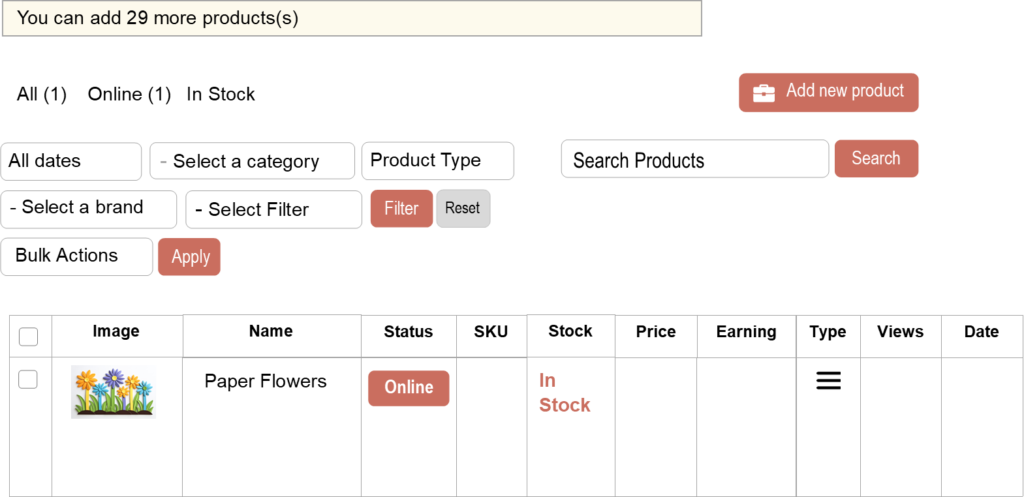
This is where you manage your products all in one place.
Here you can add new products, view product details, check stock status, and monitor activity such as views and earnings.
You can also use the filters and search tools to quickly find and manage specific products in your store.
Your Product Dashboard
Each section is described below to help you better understand how this page works. This is the main area for monitoring and managing your products.
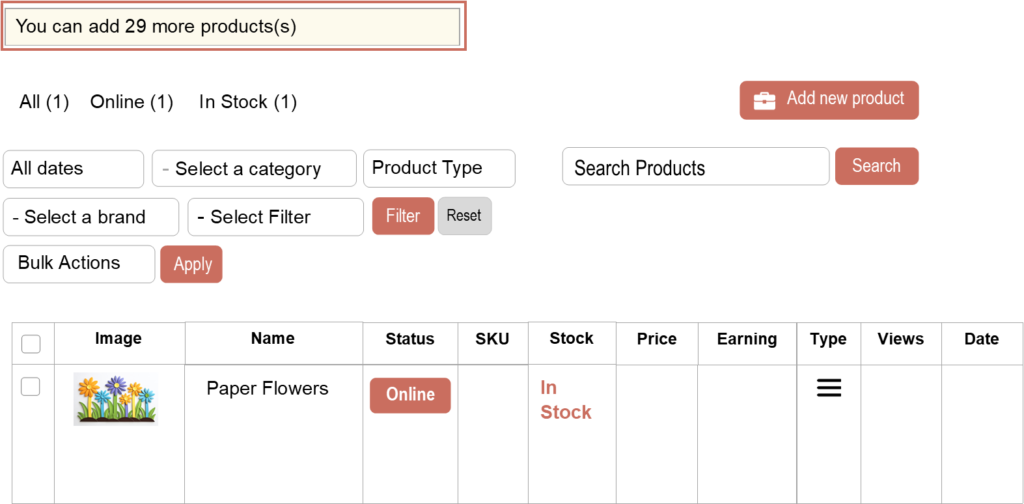
Number of Products
My Local Crafters Membership allows for 30 products. This notification indicates the number of products you can still add to the account before you reach the maximum limit.
If you reach the maximum linit, delete or archive existing products to free up space. There will be an option in the future to add more products to your Storefront.
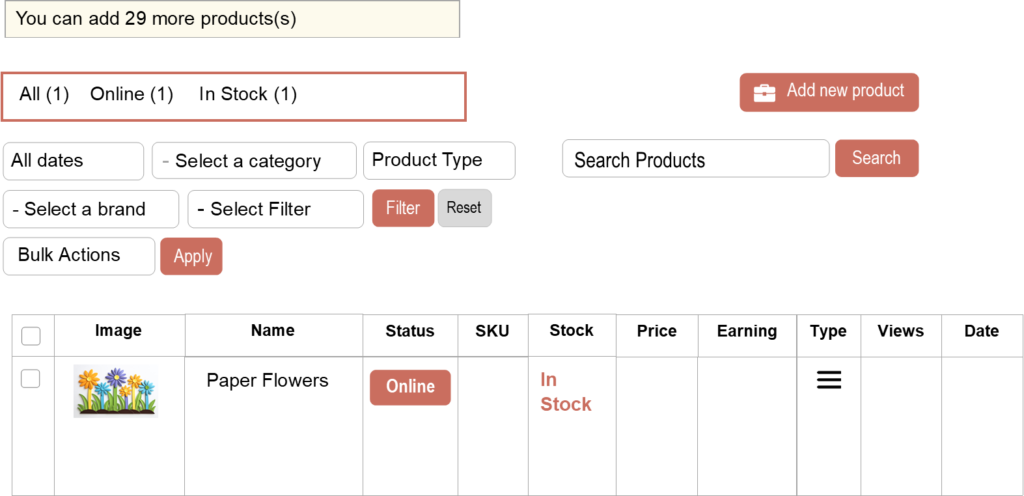
Status of Products
These tabs allow you to quickly filter and view your products based on their current status.
When clicking on “All” – “Online” or “In Stock”, the system will display only the products that match that category.
“All” shows every product in your store.
“Online” shows those published and visible to buyers.
“In Stock” shows products available for purchase.
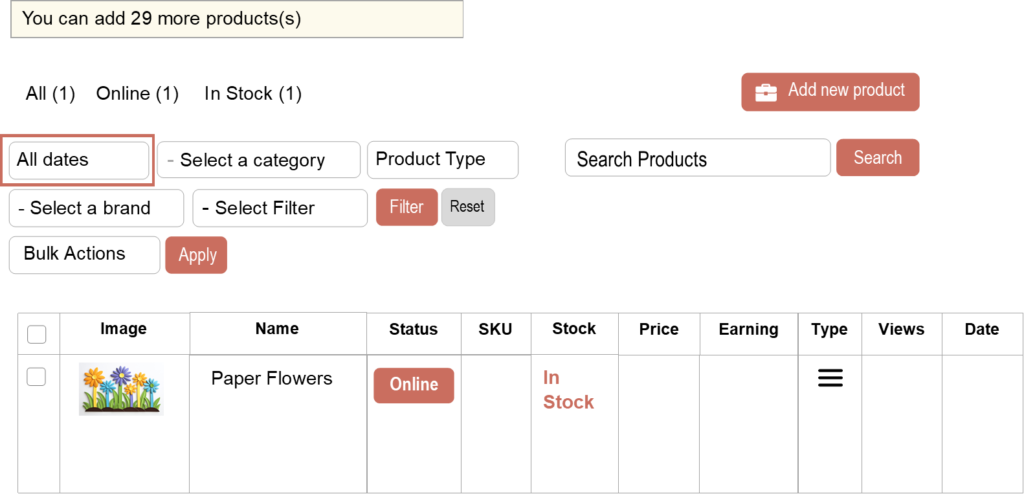
All Dates
The All-Dates filter allows you to sort and view products based on when they were created or published.
When a specific month is selected in the drop down, the system will display only the products that match that timeframe. This is helpful for reviewing recently added items or older listings. If no date is selected, all products will be displayed.

Select a Category
This filter allows you to view products based on the category they are assigned to when you added the product to your Storefront.
When a category is selected, only products within that category will be displayed.
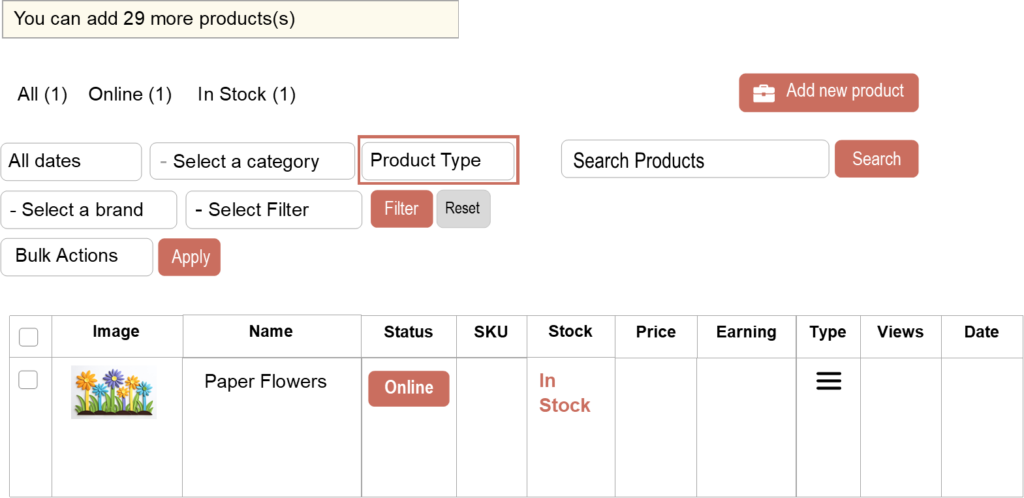
Product Type
This filter allows you to view products based on how they are set up in your store.
Product types include:
Simple are single items with no variations.
Variable include options such as size or color.
Group is a collection of related products
External are listed but bought on another website
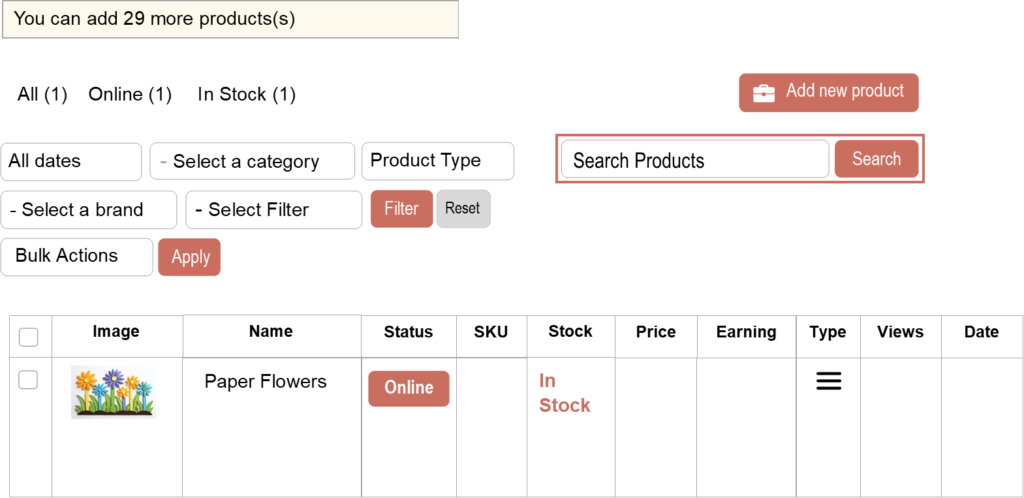
Search Products
This field allows you to quickly find a specific product by name or keyword. This helps you by reduce the time scrolling for products. “Search” works best when product names are accurate and consistent.
If no results appear, check spelling or try a different keyword.
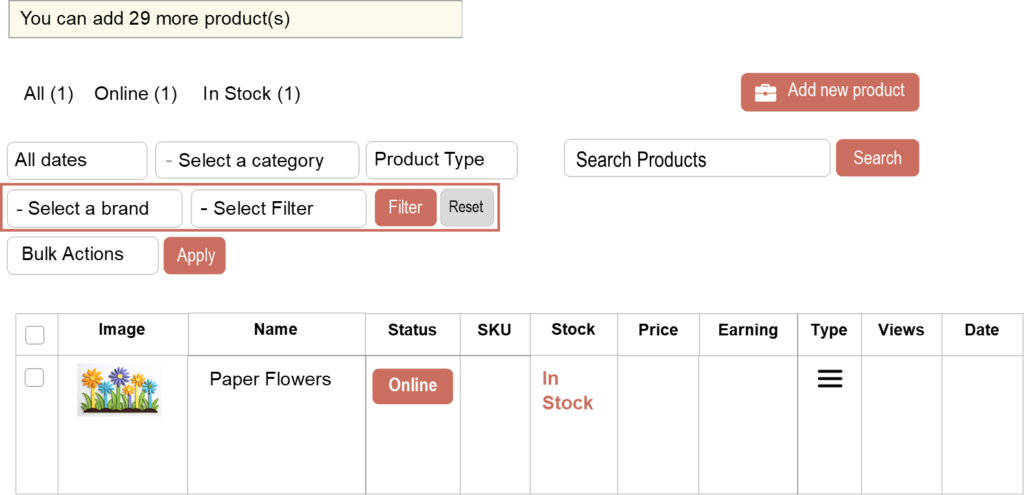
Select a Brand and Filter
Select a Brand has a drop down that should only have your Storefront name. Select this for your Storefront
Select Filter
Featured – Admin sets this feature
Top Rated – high ratings & reviews
Best Selling – highest sales
Low in Stock – comes from inventory
Out of Stock – comes from inventory
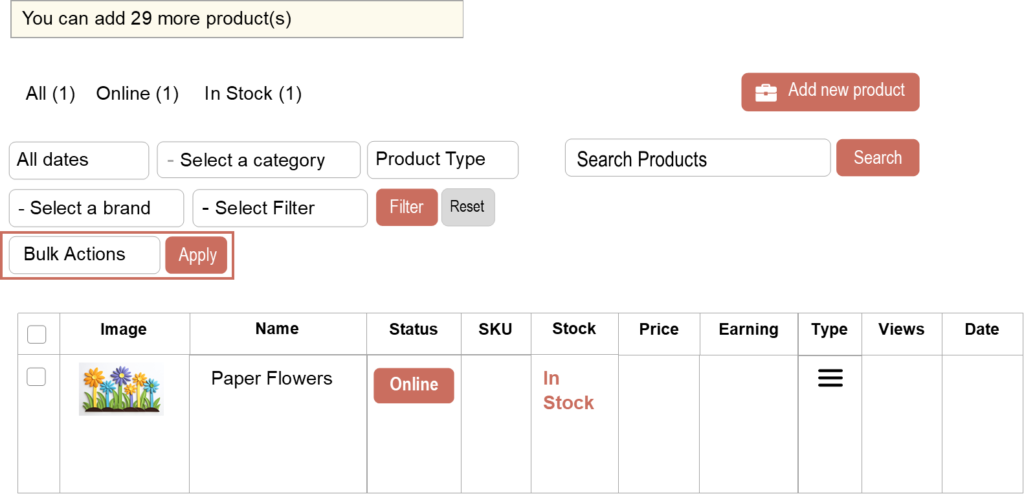
Bulk Actions
This feature allows you to apply actions to multiple products at once. Select the checkbox next to each product you want to modify.
By selecting multiple items, you can perform tasks such as editing or deleting several products simultaneously.
Double-check selected products before applying actions since they cannot always be undone.
When you Hover over the Name of the product, you will see the same Bulk Actions. This allows you to make changes to individual products.
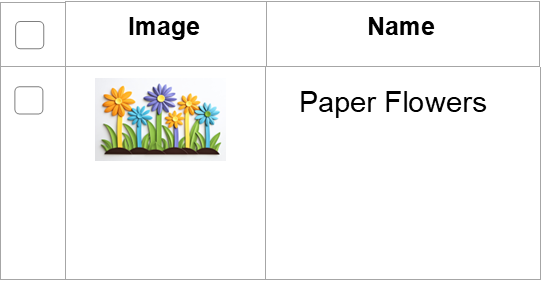
Image and Name
Image
Displays a thumbnail image of the product for quick visual identification. This helps you easily recognize items without needing to read the product name. A clear image also reflects how the product appears to customers in your storefront.
Name
Shows the product name as it appears to customers in your store. This is the main identifier for your product listing. Keeping names clear and descriptive helps customers find and understand your products.
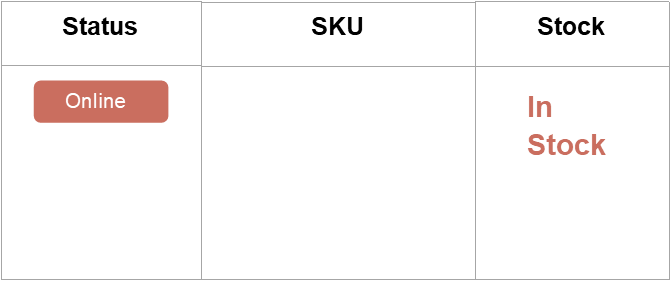
Status, SKU and Stock
Status
Indicates whether the product is live and visible to customers. A status of Online – the product is available for purchase.
Draft – not published
Pending Review – awaiting approval
Scheduled – will go live later
SKU
The SKU is a unique code used to identify and track your product. It helps you organize inventory and manage products more efficiently. SKUs can include letters, numbers, or a combination of both.
Stock
Shows whether the product is currently available for purchase. It reflects the inventory level set in your product settings. Keeping this updated helps prevent overselling and ensures accurate availability.
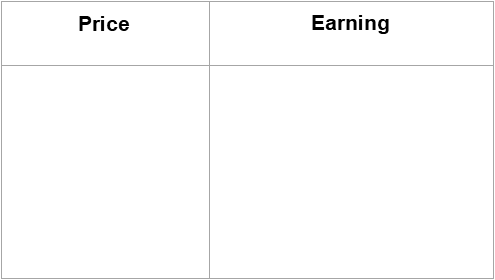
Price and Earning
Price
Displays the selling price of the product as seen by customers. This is the amount customers will pay before any taxes or shipping. Setting competitive and accurate pricing helps attract buyers.
Earning
Shows the amount you earn from each sale. This helps you understand your profit per item. Monitoring earnings can help you adjust pricing and improve profitability.
Type, Views & Date
Type
Indicates the product type, such as simple or variable. This determines how the product is set up and displayed in your store. Different types allow for variations, external links, or grouped items.
Views
Displays the number of times the product has been viewed by customers. This helps you understand how much interest your product is receiving. Higher views may indicate strong visibility or demand.
Date
Shows when the product was created or published in your store. This helps you track when items were added or updated. It can also be useful for managing newer or older listings.